
This section is only visible to professional accounts.
Your HiPay back office offers you all the flexibility you need!
 Go to Transactions → Search transactions to get a detailed listing of transactions.

To select the columns to be displayed, click on  .
.
Then just tick off the elements of your choice:
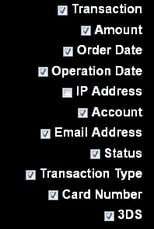
Please note that columns can be sorted by clicking on  .
.
Besides, you can also use  to refine your search criteria.
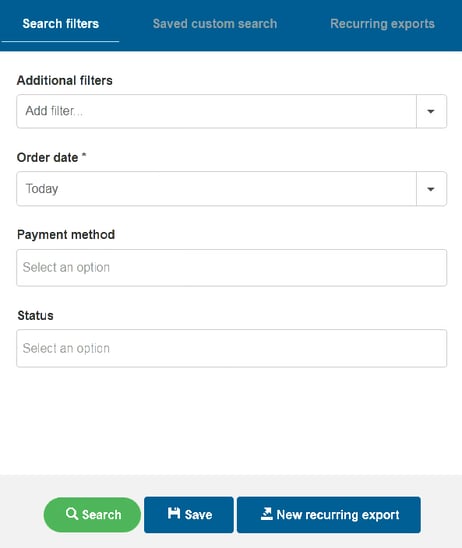
There are four categories offering many supplementary search criteria to choose from.
Additional filters:
- 3DS transaction
- Amount
- Capture date
- Card holder
- Card number
- Card token
- Country
- Currency
- Currency not in
- E-mail address
- Fraud result
- IP address
- Merchant reference
- Operation date
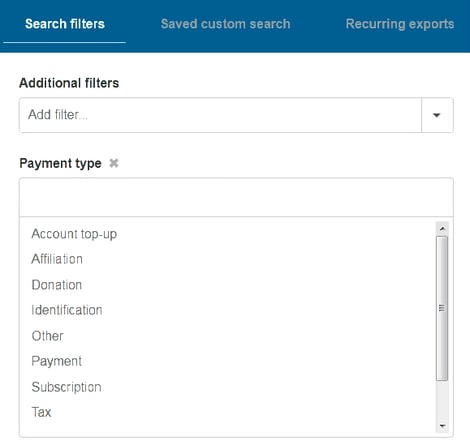
- Payment type
- Refund date
- Transaction ID
- Transaction label
- Website ID
Order date*:
- Today
- This week
- This month
- Between…
*This category is mandatory.
Payment method:
- SLIMPAY
- MULTIBANCO
- BELFIUS
- KBC Online
- PAYSHOP
- ING HOME’PAY
- PRZELEWY24
- BOLETO
- BANCONTACT
- CBC Online
- MOONEY
- IDEAL
- CB
- VISA
- MAESTRO
- SOFORT ÜBERWEIZUNG
- MASTERCARD
- BCMC MOBILE
Please note: all the payment methods are activated by default.
To make any changes, please submit a request to our Support team (specifying the related Website ID).
Status:
- Authorized
- Cancelled
- Completed
- In progress
- Not completed
- Refund pending
- Refunded
- Refused
- Rejected
Some criteria offer another layer of choices, such as the example below.
To remove selected criteria from your search filters, just click on  .
.
Once you have selected your search criteria, click on  .
.
Then, to get all the details about a specific transaction from the list, click on  .
.

You will get all the data you need from the Transaction receipt & Transaction summary:
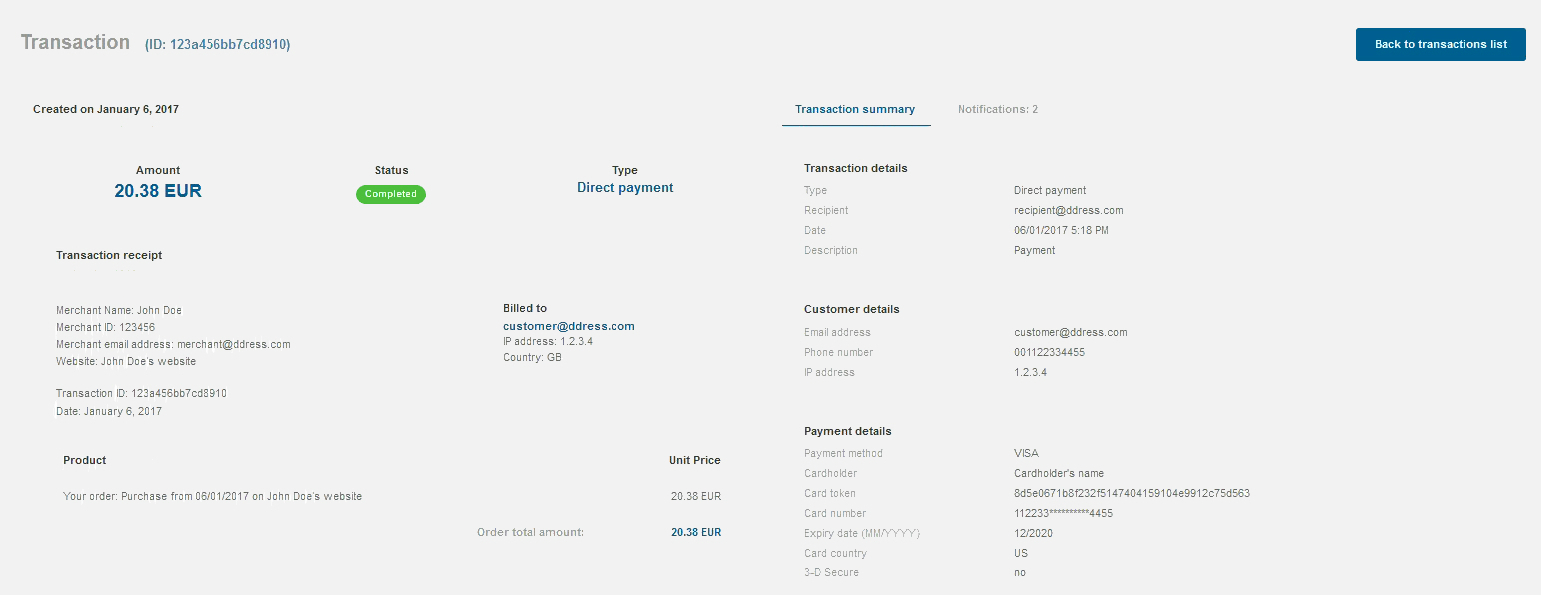
You will even get a recap of the notifications specific to the selected transaction, with their status, and will be able to see  the message.
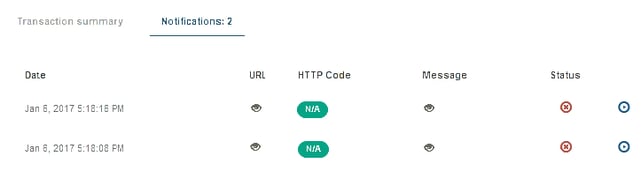
That way, you have the possibility to re-queue  any notification that was not sent
  .
.
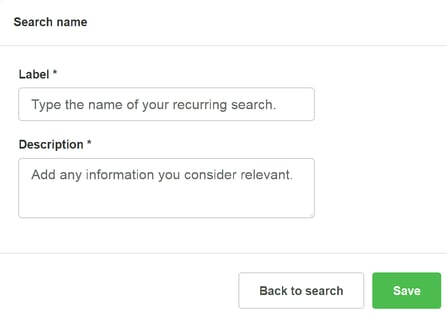
 Quick tip: to save time,
  your recurring searches!
For a quick search, enter a transaction ID and click on  , in the upper banner of your back office.
