 Go to Products → Payment buttons if you already have payment buttons.
Then select a website and click on  at the top-right corner of your screen.
 Quick tip: from the list of your websites (Products → My websites), you can also click on the icon under “Buttons”
  , then on at the top-right corner of your screen.
You have a lot of flexibility in deciding how to integrate HiPay.
Here are the possibilities offered to you:
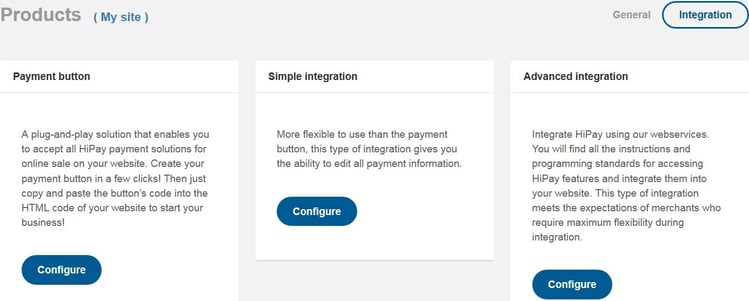
- To create a fixed payment button with no coding effort, simply refer to this previous section.
- To create a dynamic payment button, choose a simple integration.
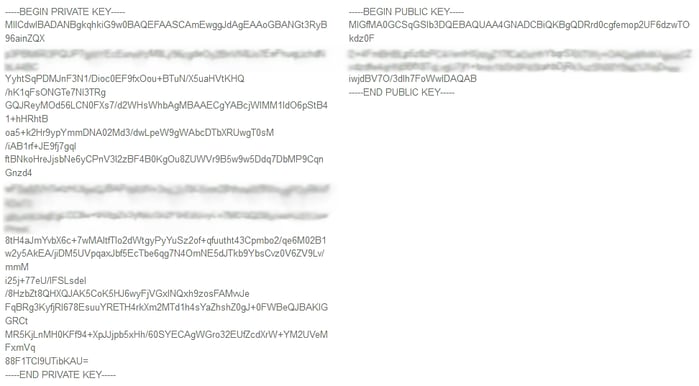
Then just copy/paste your pair of RSA signing keys (security keys) into your code.
Based on an asymmetric cryptographic algorithm (hence, the set of two different keys), your private and public keys look like a block of code with the following headers:
The Simple integration section also enables you to  and gives you access to
  .
.
 Be careful when using the
  feature, as the secure buttons you currently use will no longer be valid.
If you renew your keys, you will also need to update your site’s code.
- For an advanced integration, click on
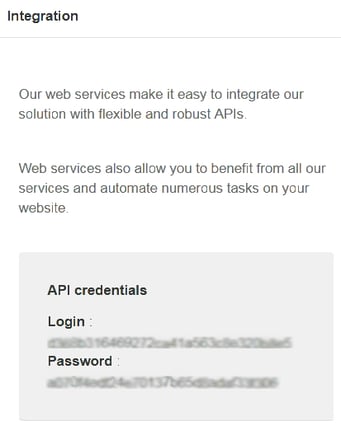
 to retrieve your API credentials from the Toolbox, where you will also find a link to our Developer Portal as well as to our APIs and web services for more technical information.