
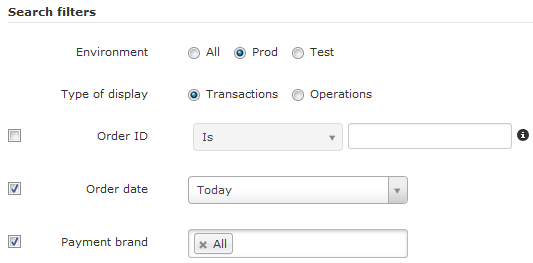
When you log into your HiPay Enterprise back office, you can choose your environment and thus see what is in Production mode, in Test mode, or both (“All”).
You can also distinguish transactions from operations using the Type of display.
With this functionality, you can view the statuses of each operation for a transaction, which is useful in the case of transactions with several capture or refund operations for instance.
E.g.: for a £100 capture operation with a £60 refund, you will see the final captured amount, i.e. £40 in the “Balance” column. The calculation details can be displayed by clicking on the associated small blue square (the number indicates the number of related operations).

It also enables you to faster retrieve these operations and compare them with payouts done by acquirers on their bank account.
Besides, three default search filters are displayed:
- Order ID
- Order date
- Payment brand
You can add as many filters as you want from the “Add filter…” drop-down menu, among the following categories:
- Transaction details
- Customer Information
- Others
Then tick or untick the respective boxes.
 Quick tip: To return to the initial default filters display, click on the Transactions tab.
PC users can also press F5, and Mac users, Command-R.
