
Focus on Sentinel and custom data
What are custom data?
Among the features of Sentinel, our fraud protection service on the HiPay Enterprise platform, it is possible to set up anti-fraud rules in advance using your business data. Complementary to payment data, custom data enable to easily trigger targeted actions by creating security rules based on the analysis of your activity.
Concrete examples from various sectors of activity
Custom data involve prior analysis of your business activity and risk factors.
For instance, merchants selling tires on-line can make a list of locations often targeted by fraud and requiring extra caution.
However, if one of your carriers is extremely reliable, you can adjust the final score of the transaction in order not to disadvantage customers using their services for delivery.
The clothing sector, on the other hand, requires stronger security rules on baskets containing items often targeted by fraudsters (e.g.: jackets from a specific brand).
Merchants from the gaming industry can also set up anti-fraud rules depending on the creation date of user accounts or amounts spent recently.
Custom data can thus adapt to any business activity and to all sectors.
How to create/activate them?
There is no limit to the number of custom data you can implement!
From the “Fraud Protection” tab on your back office, in the “Custom Data” section, click on and fill in the following fields: Label, Description, Condition, Value and Action.

Let’s take the example described above (to create a rule associated to a list of locations often targeted by fraud and requiring extra caution).
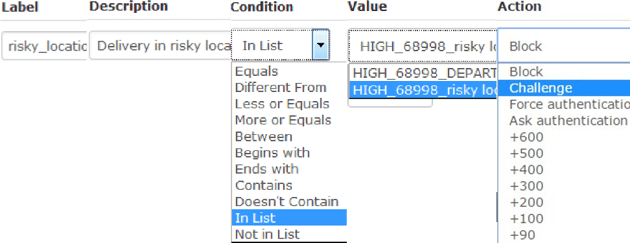
- Choose a label clearly describing the rule to create (e.g.: risky_locations).
- Add a description that is easy to understand (e.g.: Delivery in risky locations).
- Assign a condition from the drop-down menu (e.g.: In List).
- Select a list for the value from the drop-down menu.
- Define the action to be triggered from the drop-down menu (e.g.: Challenge).
Don’t forget to click on  in the upper right of your screen to save your settings.
In a single click on the  button, you can enable or disable rules depending on your needs or the time of the year (e.g.: during peak periods or private sales).
Please note that it is now possible to delete  or duplicate
  a rule.
As for the whole Sentinel service, rules are applied as per the levels of control defined.
To prevent errors, our team of Fraud experts checks set criteria for all the rules created. Fraud moderation is enabled by default and can be disabled from the Fraud Protection home page in the upper right corner of your screen.

Fields to fill in and control levels to select
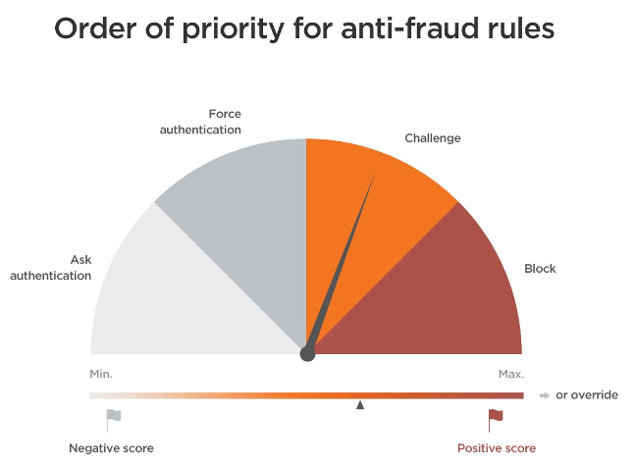
You must respect the levels of control when creating anti-fraud rules.
Rules aiming to “challenge” transactions are applied before rules aiming to “force authentication”.
Rules set as “override” are given priority to bypass all the others.
How to send them by API?
The custom_data field is in JSON format.
It includes values and labels, which must match exactly the ones saved in Sentinel (e.g.: test_custom).
Make sure to respect upper and lower cases (e.g.: 'test_custom' is different from 'TEST_Custom'). If typed incorrectly, no anti-fraud rule associated to the custom data in question will be triggered.
Example of custom_data in PHP:
$customData = array(
    'test_custom' => 0,
    'TEST_Custom' => 1
);
$client->setParameterPost('custom_data', json_encode($customData));
To trigger actions for custom_data sent by API, you must:
-
Log in to your back office.
-
Select the relevant test or production account.
-
From the “Fraud Protection“ tab, click on “Custom Data”.
-
Set up variables (“Label”, “Condition” and “Value”)
as well as the associated “Action“.
Example to trigger “Force authentication” when the “click and collect” shipping method is chosen by the addressee:
1.) In the “Fraud Protection” tab, from the back office, you must create beforehand the rule “shipping_method = click and collect -> Force authentication”.

2.) When calling our APIs, you must send:
$customData = array(
    'shipping_method' => 'click and collect'
)
$custom_data = json_encode($customData);
